How to Point a Domain to Namecheap Hosting (and Keep Email Working)
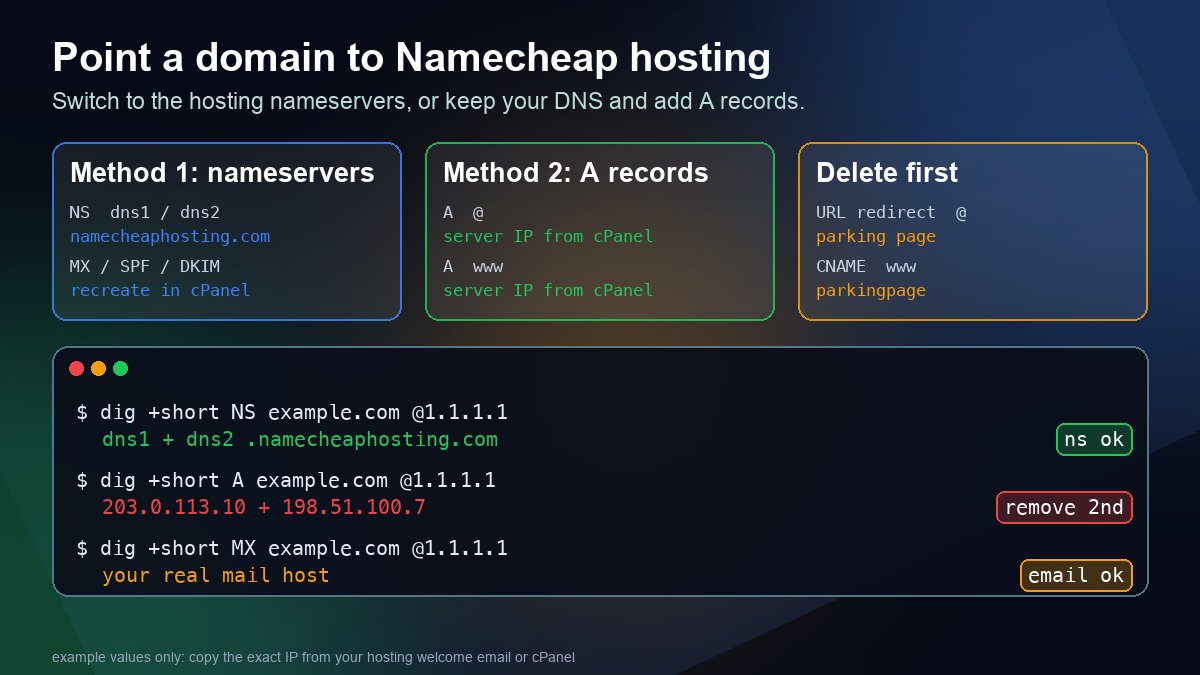
Short answer: to point a domain to Namecheap shared hosting, set the domain's nameservers to dns1.namecheaphosting.com and dns2.namecheaphosting.com, then add the domain in cPanel under Domains. If you want to keep your DNS where it is, create A records for @ and www that point to your hosting server's IP address instead. Both work, but they treat your existing DNS records very differently, and that is where most sites and mailboxes get broken.
| Web Hosting DNS (nameservers) | A records (keep your DNS) | |
|---|---|---|
| Who runs the DNS zone | The Namecheap hosting server, edited in cPanel | Your current DNS provider |
| What you change | The nameserver set at the registrar | A records for @ and www |
| Existing DNS records | Not copied. You must recreate MX, TXT and others in cPanel | Untouched |
| Adding the domain in cPanel | Works directly | Needs a domain control validation step first |
| Best for | A domain that only needs this hosting | Domains with Cloudflare, Google Workspace or Microsoft 365 mail |
Namecheap documents both routes in its knowledgebase articles on connecting a domain to a server or hosting, and on adding an addon domain (the addon article was last updated in July 2026). This guide follows them and adds the checks you should run before and after each change.
Before you change anything
- Find out where DNS lives today. Run a nameserver lookup or
dig +short NS example.com. The names you see tell you which provider holds the real zone. That is the place to edit records, which is not always your registrar. - Write down every record you rely on. Export the zone or screenshot it. Pay most attention to
MX, and to theTXTrecords for SPF, DKIM and DMARC. Namecheap warns that records are not carried over when you switch to its hosting nameservers. - Get your hosting details. For shared hosting you need the nameservers above. For an A record you need the server IP from your hosting welcome email or cPanel.
- Check DNSSEC. If the domain is signed and the DS record at the registry does not match the new DNS provider, validating resolvers will refuse to answer. Our DNSSEC check guide shows how to see whether a domain is signed.
Method 1: use the Namecheap Web Hosting DNS nameservers
This is the route Namecheap recommends for a Stellar, Stellar Plus or Stellar Business plan, and for the older Value, Professional, Ultimate and Business plans.
If the domain is registered at Namecheap
- Sign in and open Domain List, then click Manage next to the domain.
- In the Nameservers section, choose Namecheap Web Hosting DNS from the dropdown.
- Click the green checkmark to save.
The dropdown has other choices, and picking the wrong one is a common mistake. Namecheap BasicDNS uses dns1.registrar-servers.com and dns2.registrar-servers.com and is where the Advanced DNS tab lives. Custom DNS is for nameservers from another provider. Namecheap Web Hosting DNS is the one that hands the zone to your hosting account.
If the domain is registered somewhere else
Log in at your registrar, find the nameserver setting, choose custom or "enter my own" nameservers, and replace every existing entry with dns1.namecheaphosting.com and dns2.namecheaphosting.com. Do not leave an old nameserver in the list. A mixed set sends some visitors to the old DNS and some to the new. If you need a general walkthrough for any registrar, see how to change nameservers step by step.
Add the domain in cPanel
If this is not the main domain of the hosting account, it must also be added as an addon domain. In cPanel open Domains, click Create A New Domain, type the domain and submit. Namecheap states that the domain must already be on its Web Hosting nameservers for this to work, and that the same domain cannot already exist in the account as an addon or main domain. If the nameservers have not changed yet, cPanel shows an error instead.
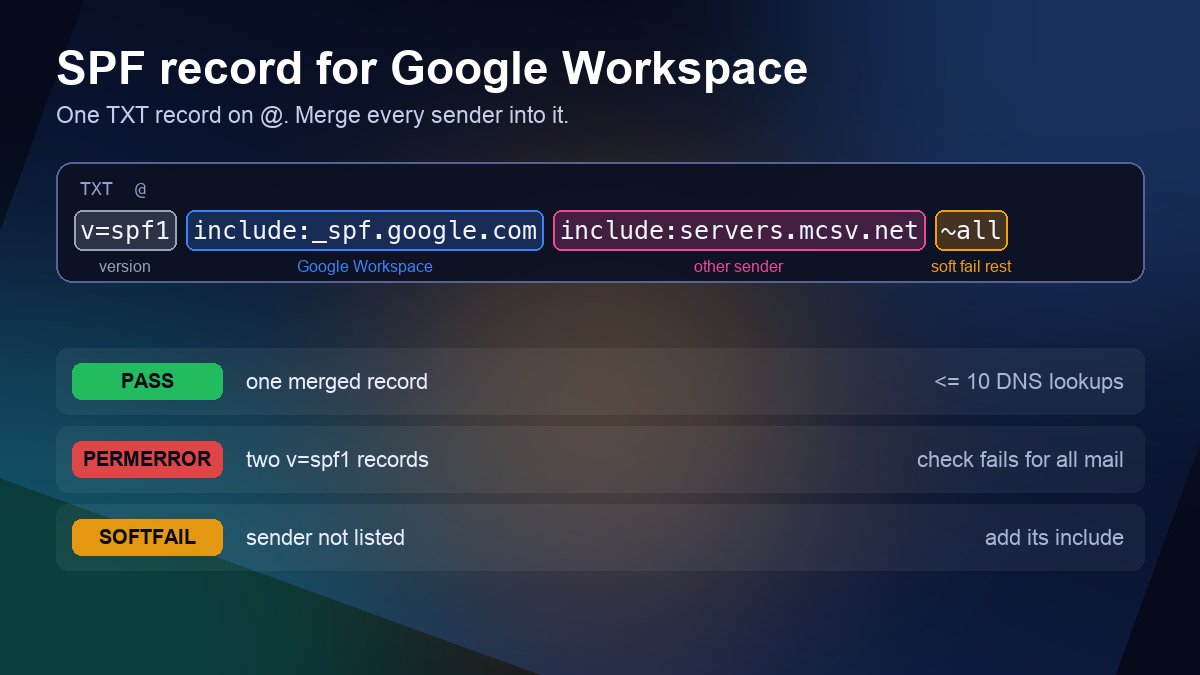
Mind your email. Namecheap says that after you switch to its hosting nameservers, the custom records you had are replaced with the hosting defaults, and you can recreate them in the cPanel Zone Editor and Email Routing menus. If your mail is at Google Workspace or Microsoft 365, rebuild the MX records there straight away and re-check SPF, DKIM and DMARC. Our MX record guide and the SPF, DKIM and DMARC setup guide cover the values. Do this in the zone as soon as it exists, not days later when mail has already bounced.
Method 2: keep your DNS and use A records
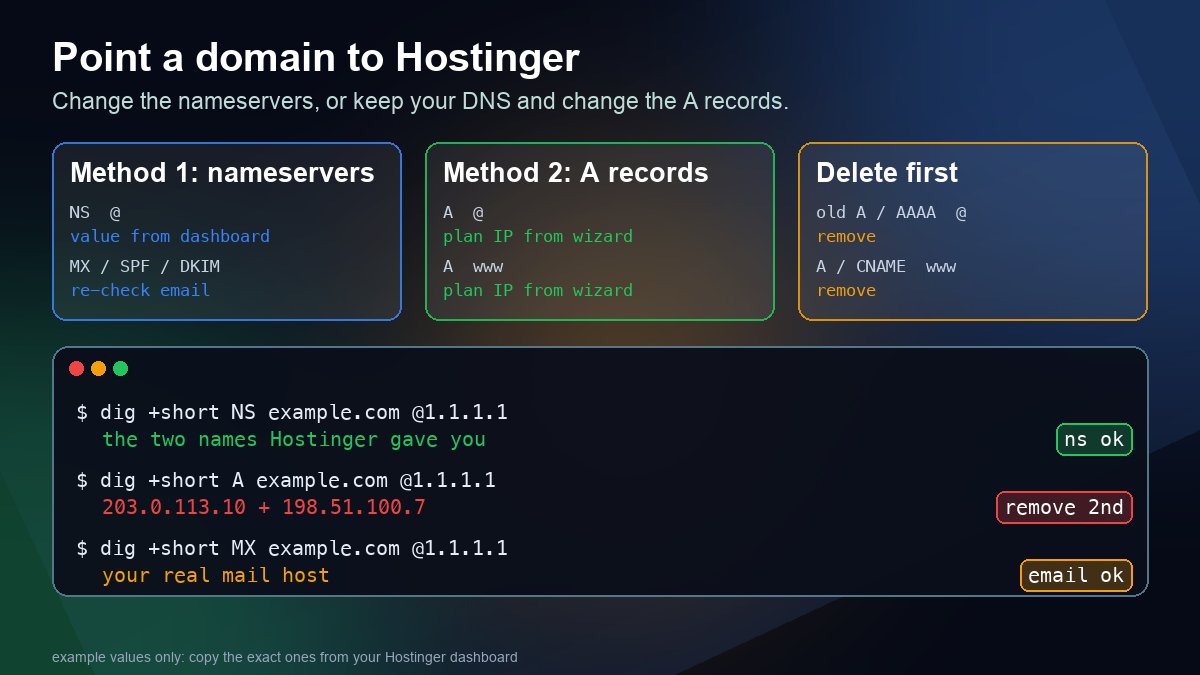
Choose this if Cloudflare or another provider must remain in charge, or your registrar locks nameserver changes. Namecheap notes it works for its shared, reseller, VPS and dedicated hosting, and for any provider that gives you an IP address.
- Get the server IP from your hosting welcome email or cPanel.
- Edit the zone at the provider that answers for the domain. If the domain uses Namecheap BasicDNS, PremiumDNS or FreeDNS, open Domain List, Manage, Advanced DNS and use Add New Record. Namecheap says the option is not available when the domain uses other nameservers, which is a quick way to tell you are in the wrong place.
- Create the records. Add an
Arecord with host@for the root domain and another with hostwww, both with the server IP. A custom host such asblogpoints a subdomain, and*catches every subdomain that has no record of its own. - Remove conflicting records. A new Namecheap domain comes with parking page records: a URL redirect for
@and a CNAME forwwwpointing toparkingpage.namecheap.com. Delete them. A name cannot hold a CNAME and an A record at once (RFC 1912, section 2.4), and a leftover record sends part of your traffic to the wrong place. See A record vs CNAME if you are unsure which you need. - Leave the TTL on Automatic (30 minutes) unless you have a reason to change it. Namecheap says new records usually take effect within about 30 minutes.
Then validate the domain in cPanel
Because the domain is not on Namecheap's hosting nameservers, cPanel will not accept it as an addon domain until you prove control. Namecheap offers three ways: a TXT record in the current DNS zone, an HTTP check using a file in the domain's current web root, or an HTML check using a code snippet in the head of the current home page. The validation code is only valid for one day, so create it just before you add the domain. After it passes, upload the site to the new document root.
Check it with dig instead of guessing
Ask two resolvers, so a stale cache cannot fool you:
dig +short NS example.com @1.1.1.1
dig +short NS example.com @8.8.8.8
dig +short A example.com @1.1.1.1
dig +short A www.example.com @1.1.1.1
dig +short MX example.com @1.1.1.1- Method 1: both NS answers should be the two Namecheap hosting names, and nothing else.
- Method 2: the NS answers should still show your DNS provider, and both
Aanswers should be your server IP only. A second, unfamiliar address means a parking record is still there. - Both: the MX answer should be your real mail host.
You can run the same NS check without a terminal using our nameserver lookup. If the answers differ between resolvers, it is propagation, not a mistake. Namecheap says nameserver changes can take up to 24 hours, and in rare cases longer, to reach every ISP cache. Our DNS propagation guide explains why nothing can speed that up.
When it still does not work
- The site shows a Namecheap parking page. Parking records are still in the zone, or the domain was never added in cPanel. Remove the records or add the addon domain.
- cPanel will not let you add the domain. The nameservers have not changed yet, or you skipped the validation step in Method 2.
- The site loads for you but not for others. Your resolver already has the new answer. Check against a second resolver and wait out the TTL.
- Mail stopped right after the change. Records were not carried over. Recreate MX and TXT in the cPanel Zone Editor, or switch back to the old nameservers while you rebuild the zone.
- The domain refuses the nameservers. Some TLDs need the DNS zone to exist at the new provider first, and Namecheap lists registry-specific rules for a few of them, for example .IS domains. Check the registry rules before retrying.
FAQ
Which method should I choose?
If this hosting plan is the only thing the domain is used for, use the Web Hosting DNS nameservers and keep your records in cPanel. If anything else, such as Cloudflare, a mail provider or a CDN, depends on the DNS zone staying where it is, use A records and validate the domain in cPanel.
How long does it take?
Namecheap says new A records usually take effect in about 30 minutes, and nameserver changes can take up to 24 hours or more. Many resolvers update sooner, so test against two of them before assuming it failed.
Does the domain have to be registered with Namecheap?
No. Namecheap's knowledgebase says a domain at another registrar can use its hosting. You only need access to the registrar's nameserver settings, or to the DNS zone for A records.
Will pointing the domain transfer it to Namecheap?
No. Pointing only changes where visitors are sent. The registration, renewals and ownership contacts stay at the registrar. A transfer is a separate process. If you are comparing hosts, our guide to pointing a domain to Hostinger covers the same two methods on another provider.