How to Point a Domain to Hostinger: Nameservers vs A Record
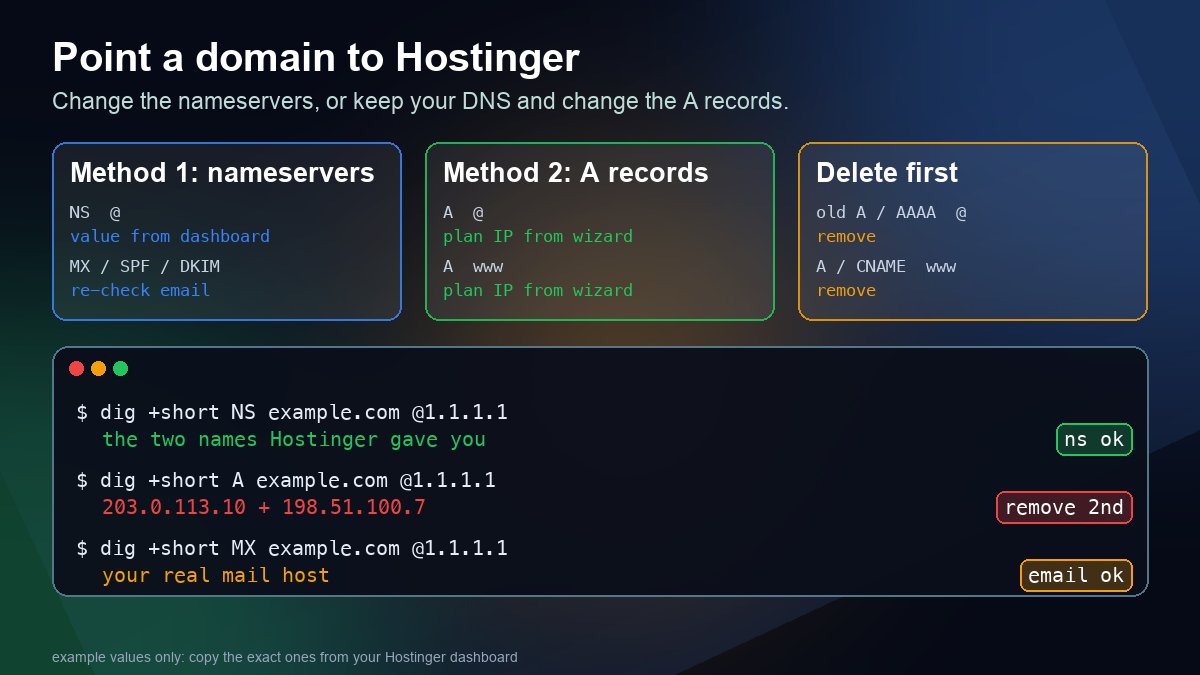
Short answer: there are two ways to point a domain to Hostinger, and you pick one. Change the nameservers at your registrar to the ones Hostinger shows you, and Hostinger then runs the whole DNS zone. Or keep your DNS where it is and change the A records for @ and www to your hosting plan's IP address. Nameservers are the easier, all-in-one route. The A record is the right one when Cloudflare or another provider must keep control of DNS, or when you want email to stay exactly as it is.
| Change nameservers | Change A records | |
|---|---|---|
| Where DNS is managed | At Hostinger | Stays at your current provider |
| What you change | The NS set at the registrar | A records for @ and www |
| Email records | Replaced by Hostinger's defaults, so re-check MX, SPF, DKIM and DMARC | Left untouched |
| Best for | Hostinger hosting plus Hostinger email, fewest moving parts | Cloudflare users, Google Workspace or Microsoft 365 mail, registrars that lock nameservers |
Hostinger updated its own pointing guide on October 28, 2026. It now has you add the domain to your plan first and read the exact values from a Connect wizard in the dashboard, so this guide follows that flow and tells you what to verify at each step.
Before you change anything
- Add the domain to your hosting plan first. Hostinger only shows your nameserver or IP values after the domain is attached to a website. In the dashboard, open Websites, then Create site (or use a temporary domain and connect yours later). Temporary domains show no nameservers.
- Switch DNSSEC off. Hostinger lists this as a requirement. If the domain is signed and the DS record at the registry does not match the new DNS provider, resolvers that validate will reject the domain. Our DNSSEC check guide shows how to see whether a domain is signed.
- Find out where your DNS lives now. Run a nameserver lookup or
dig +short NS example.com. Edit records at the provider those names belong to, not necessarily at your registrar. - Save a copy of your current zone. Export it or take a screenshot. You will want the MX and TXT records if something goes wrong.
Method 1: point the domain with nameservers
This is the option Hostinger recommends when you want it to manage DNS for both hosting and email.
- In the Hostinger dashboard, go to Websites, find the site and click Connect in the Connect your domain message. Hostinger detects your current DNS provider and links to its login page. You can also find the values later under Hosting plan, Plan Details, Nameservers.
- Copy the nameservers exactly. They are specific to your domain and plan. Hostinger's own examples use hosts on
dns-parking.com, but do not type those from memory, because Hostinger notes the values can differ per domain. - At your registrar, find the nameserver setting for the domain, choose custom nameservers and replace every existing entry with Hostinger's. Keep none of the old ones. A mixed set sends some visitors to the old DNS.
- Back in Hostinger, click Close. The wizard runs a Live DNS Checkup and confirms when it sees the change. You can tick the box to get an email when the domain starts pointing to Hostinger.
If the domain is already registered at Hostinger, you do not need to do anything. Its nameservers are already set to Hostinger's values, and the plan's IP is detected automatically.
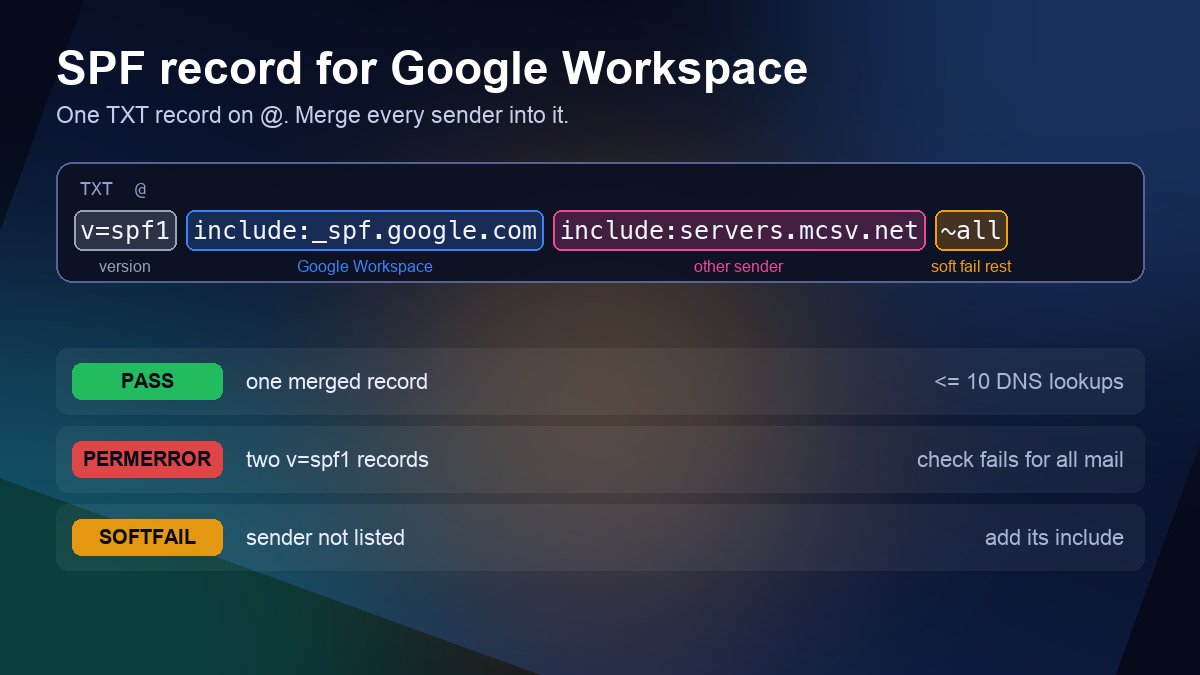
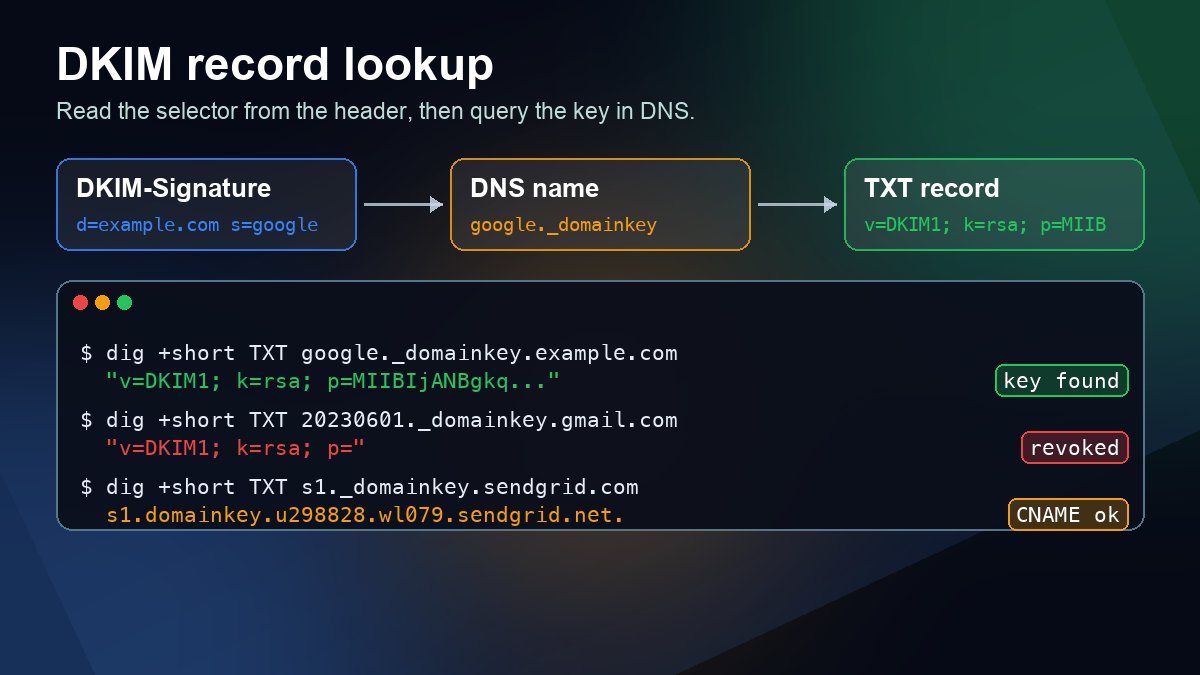
Mind your email. Hostinger warns that pointing through nameservers configures email records for Hostinger Email. If your mail is at Google Workspace, Microsoft 365 or another provider, recreate those MX records in Hostinger's DNS editor straight away, and review the SPF, DKIM and DMARC TXT records too. Our MX record guide and SPF, DKIM and DMARC setup guide cover the values. Even better, copy them into Hostinger's zone before you switch the nameservers. Hostinger lets you edit the zone while nameservers still point elsewhere, and the records take effect once they switch.
Method 2: point the domain with A records
Use this if Cloudflare or another provider must stay in charge of DNS, or if your registrar will not let you change nameservers.
- In the same Connect wizard choose Connect via DNS record and copy the IP address it shows.
- At your DNS provider, delete any existing
AandAAAArecords for@, and delete anyAorCNAMErecord forwww. A name cannot hold a CNAME and an A record at once, and a leftover parking-page address makes visitors land on the wrong site at random. - Create an
Arecord for@and another forwww, both pointing to the IP address from the wizard. - Leave MX and TXT records alone. With this method your existing email setup keeps working, and Hostinger Email would need its own records added by hand.
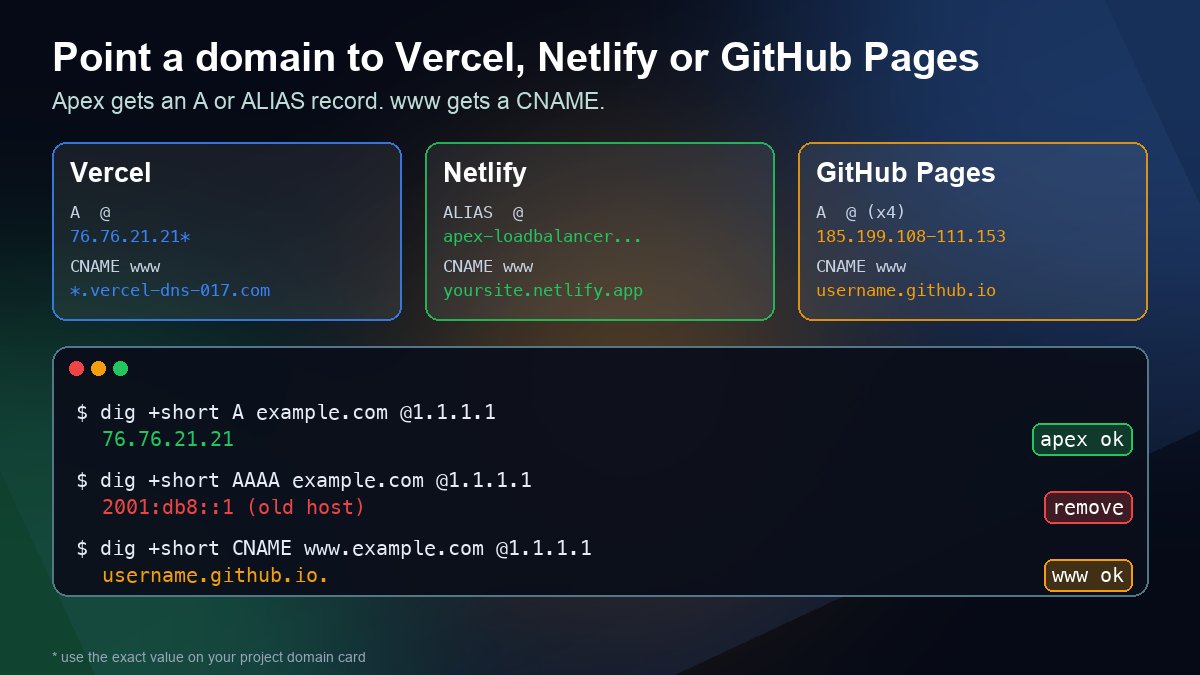
If your DNS is at Cloudflare, set these two records to DNS only (grey cloud) while you connect the domain. A proxied record answers with Cloudflare's addresses, so Hostinger's check never sees your plan's IP. Our Cloudflare DNS setup guide shows where that switch is. If you are unsure why www and the apex need different record types, A record vs CNAME explains it, and the same logic applies to hosts like Vercel in our Vercel, Netlify and GitHub Pages guide.
Check that it worked
Do not rely on the dashboard alone. Ask a public resolver so your own cache stays out of the picture:
dig +short NS example.com @1.1.1.1
dig +short A example.com @1.1.1.1
dig +short A www.example.com @1.1.1.1
dig +short MX example.com @1.1.1.1
On Windows, nslookup -type=NS example.com 1.1.1.1 does the same job, and our DNS lookup tool works from a browser. What the answers should tell you:
- Nameserver method: the NS query returns exactly the names from Hostinger's dashboard, and nothing else.
- A record method: the NS query still shows your DNS provider, and both A queries return your plan's IP, with no second address.
- Either method: the MX query returns the mail servers you actually use. If it shows Hostinger's mail hosts and you use Google or Microsoft mail, fix it now.
If the answers are right but your browser shows the old site, that is caching. Hostinger says changes can take up to 24 hours, and how DNS propagation works explains why one resolver can be ahead of another.
Common problems
- The domain still shows a parking page. An old
AorAAAArecord is still there, or the registrar still lists its default nameservers next to Hostinger's. Remove the extras. - Email stopped after switching nameservers. The new zone has Hostinger's MX records, not yours. Add the right MX and TXT records in Hostinger's DNS editor.
- The wizard keeps waiting. Check with
digfirst. If the public answers are correct, the check will catch up. Hostinger notes that custom nameservers can take up to 24 hours to validate even after DNS looks propagated. - You need a subdomain somewhere else. Hostinger domains only accept custom NS records for the main domain, so point a subdomain with an
A,CNAMEorTXTrecord instead. - Something broke and you need the old zone back. Hostinger's DNS history tab can restore an earlier snapshot of the zone. Review it first, because it replaces the current records.
FAQ
Which method should I choose?
If you buy hosting and email from Hostinger and have no other DNS needs, use nameservers. If any other service, such as Cloudflare, a mail provider or a CDN, depends on your DNS zone staying where it is, use the A record method.
How long does it take?
Hostinger says DNS changes can take up to 24 hours to propagate. Many resolvers update within minutes, so check the NS or A answer from two resolvers before assuming something is wrong.
Can I use Hostinger hosting with a domain from another registrar?
Yes. Hostinger states that any domain you own can be pointed to a hosting plan, wherever it is registered. You only need access to the domain's DNS or nameserver settings.
Will pointing the domain move it to Hostinger?
No. Pointing only changes where visitors are sent. The registration, renewals and WHOIS contact stay with the registrar. Moving the registration is a separate transfer. Our nameserver change guide covers the general steps for any registrar.