Split DNS for a Home Server: One Hostname, Two Answers
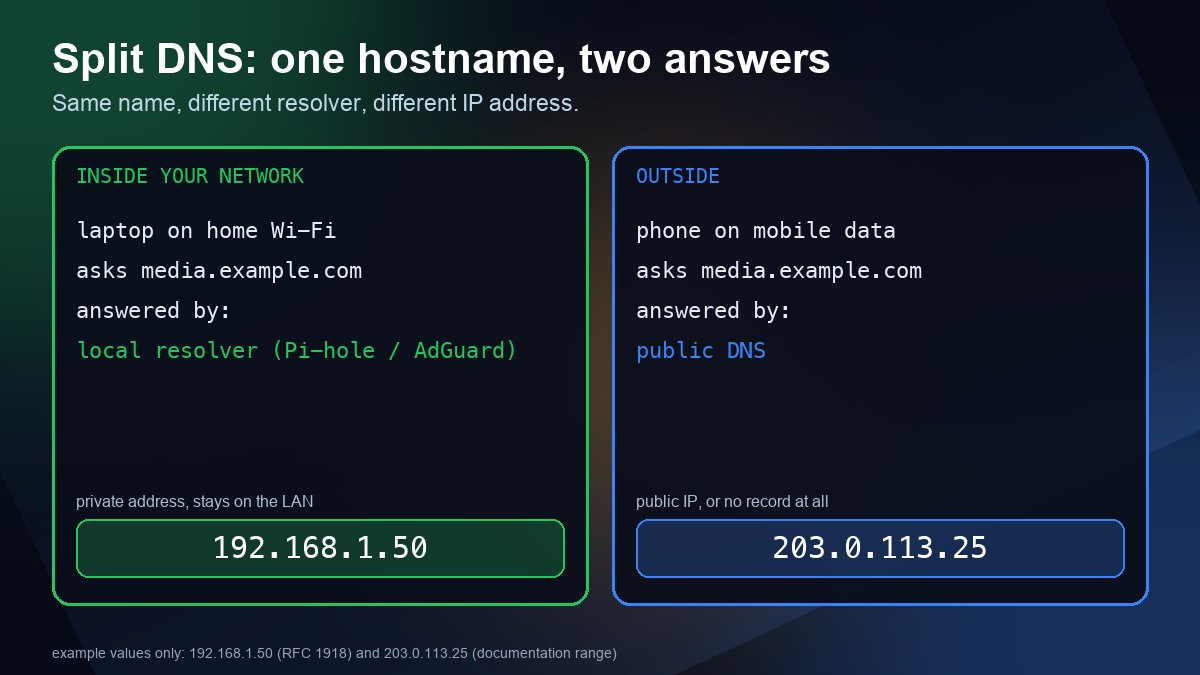
Short answer: split DNS means the same hostname returns a different answer depending on who asks. Inside your network, nas.example.com resolves to the server's private address (say 192.168.1.50). From the internet it resolves to your public address, or nothing at all. For a home server or homelab you set it up by adding a local DNS override on the resolver your devices already use, such as Pi-hole, AdGuard Home, dnsmasq, Unbound or your router, and leaving your public DNS zone alone.
The industry term is older than any standard. RFC 8499 notes that "split DNS" and "split-horizon DNS" have long been used without a formal definition, and describes them as servers giving partly or completely different answers for a domain depending on the source of the query. In practice, that is exactly what a homelab needs.
Why you would want it
Say you run a media server, a password manager or a dashboard at home and reach it through a real domain name such as media.example.com. A public DNS record points that name at your home router. That works from outside, but from inside your own network it often fails or gets slow, for three common reasons:
- NAT loopback (hairpinning) is missing or flaky. Your phone on home Wi-Fi asks for the public address, and the router has to turn the packet around and send it back inside. Many consumer routers do this badly or not at all.
- Traffic takes a pointless detour. Even when loopback works, a video stream may leave your network and return, instead of staying on the local switch.
- You may not want the server public at all. With split DNS the name can exist only on your LAN, so there is nothing to find from outside.
The same name working on both sides also means one bookmark, one app config and one valid HTTPS certificate everywhere, which is the main reason people prefer this over typing IP addresses.
How it works in one picture
| Who is asking | Which resolver answers | Answer for media.example.com |
|---|---|---|
| A laptop on your home network | Your local resolver (Pi-hole, AdGuard Home, router) | The private address, for example 192.168.1.50 |
| A phone on mobile data | Public DNS from your registrar or DNS host | Your public IP, or no record if the service is private |
Nothing about this changes your authoritative nameservers. If you are not sure which servers answer for your domain, use the nameserver lookup first; the override lives on your own LAN resolver, not at your DNS host.
Step 1: pick a domain you actually own
Use a real domain or subdomain you control, such as home.example.com, for everything internal. Two names to avoid:
.localis reserved for multicast DNS (RFC 6762), so unicast DNS overrides behave unpredictably on many systems.- Made-up suffixes such as
.lanor.homelabwork privately but cannot get a publicly trusted HTTPS certificate. If you want a private-only name, RFC 8375 designateshome.arpafor home networks.
Using a subdomain of a domain you own is the best choice because you can later get a real certificate for it, as described in the HTTPS section below.
Step 2: point your devices at one local resolver
Split DNS only works when your devices ask the resolver that holds the override. Set your router's DHCP to hand out the IP address of the Pi-hole, AdGuard Home or Unbound box as the DNS server, or configure it on the router itself if it supports local records. If a device uses a hard-coded public DNS server, it will never see your private answer. Our guide to querying a specific DNS server with nslookup and dig shows how to confirm which server a machine is really using.
Step 3: add the override
The exact menu depends on your resolver, but every option boils down to one record: this name maps to that private IP.
dnsmasq (and Pi-hole, which uses it)
In a dnsmasq config file, the address option returns a fixed IP for a name:
address=/media.example.com/192.168.1.50
The dnsmasq manual states that this applies to any host in the given domain, so subdomains of media.example.com would also get that answer. If you only want a single name, use host-record=media.example.com,192.168.1.50 instead. Pi-hole's resolver is dnsmasq-based and its web interface lets you add local DNS records, so you rarely need to edit the file by hand; see the Pi-hole DNS resolver docs.
AdGuard Home
Open the DNS rewrites section in the filters menu and add the domain with the private IP as the answer. AdGuard documents this feature in its wiki; see the AdGuard Home configuration page.
Unbound
Unbound uses the local-data option. The syntax is a standard record in quotes:
local-zone: "media.example.com." transparent
local-data: "media.example.com. A 192.168.1.50"
The transparent zone type means names you did not list still resolve normally through the public internet. Check the unbound.conf reference for the other zone types before choosing one.
BIND views
If you already run BIND, a view with match-clients lets the same server hand different zone files to internal and external clients. This is the classic enterprise form of split-horizon DNS, and it is more than most home setups need; the BIND 9 reference covers it.
Router firmware
Many routers (OpenWrt, pfSense, OPNsense, UniFi and others) have a "static DNS" or "host override" page. The idea is the same: name on the left, private IP on the right.
Step 4: test it from both sides
Run the same query on a device inside the network and on one outside, and compare. The output below is an example using documentation values, not a real host:
$ dig +short media.example.com        # laptop on home Wi-Fi
192.168.1.50

$ dig +short media.example.com        # phone on mobile data, via public DNS
203.0.113.25
If the inside machine still returns the public address, work through this list:
- Run
dig media.example.comand look at theSERVER:line in the output. That is the resolver that answered. If it is not your local one, the device is bypassing it. - Flush the local cache (on Windows,
ipconfig /flushdns) and retry. Our DNS propagation guide explains why cached answers linger. - Check for a browser setting that bypasses your resolver. See the next section.
- Check for IPv6. If the public name has an AAAA record but your override only returns an IPv4 address, some clients will still try the public IPv6 address. Add a matching AAAA override or remove the public AAAA record.
You can also run an external check with our DNS lookup tool to confirm the public side still returns what you expect.
The gotcha that breaks most homelabs: encrypted DNS in the browser
Browsers and operating systems can send DNS queries over HTTPS straight to a public provider, skipping your local resolver entirely. When that happens, your private override is never consulted and the name resolves to the public address or fails. This is a very common reason split DNS "works in the terminal but not in the browser".
Firefox has a built-in way for a network to opt out: if the resolver returns NXDOMAIN for the canary domain use-application-dns.net, Firefox does not turn on DNS over HTTPS by default on that network. Mozilla documents this in its canary domain article. Check whether your resolver can answer that canary name with NXDOMAIN. A user who has manually enabled secure DNS in the browser will still bypass you, so also check the browser's own secure DNS setting. For background on the feature itself, see our DNS over HTTPS explained article.
HTTPS: keep a real certificate on the internal name
If the name only exists on your LAN, the usual HTTP-01 certificate check cannot reach it. The way around this is the DNS-01 challenge, which proves control of the domain by adding a TXT record to your public DNS zone and does not need your server to be reachable. Let's Encrypt's challenge types page notes that DNS-01 also allows wildcard certificates, and that HTTP-01 cannot be used for them.
A common layout is one wildcard certificate for *.home.example.com, issued by a reverse proxy such as Caddy, Traefik or Nginx Proxy Manager, plus a split-DNS record that sends every service name to the proxy's private IP. Your public zone then holds only the TXT records used for validation, and the services stay invisible from outside. If you use a registrar with a poor API, delegate just the _acme-challenge name to a DNS host that supports automation; our comparison of free DNS providers helps you pick one.
Security notes
- Public DNS can leak private IPs. Do not publish
192.168.x.xA records in your public zone. They are harmless to reach but tell outsiders how your network is laid out, and they cause confusing results for guests. RFC 1918 reserves those ranges for private use. - Split DNS is not access control. It hides a name, not a service. A server on a public IP is reachable whether or not the name resolves, so keep authentication and a firewall in place.
- DNSSEC and overrides. If your domain is DNSSEC-signed and a validating resolver answers with local data for a name inside the signed zone, behavior depends on the resolver. Test with a validating client before relying on it, or use a dedicated internal subdomain instead of overriding names from the public zone. Our DNSSEC check guide explains how to see whether validation is on.
- Remote access over a VPN. When you connect through WireGuard or Tailscale, make sure the VPN hands out your local resolver as its DNS server. Otherwise the name resolves publicly while you are away and privately while you are home.
When split DNS is the wrong tool
If you only run one or two services, a router with working NAT loopback and one public record may be enough. If you never expose anything externally, a private-only name on a domain you own, resolved by your local resolver, is simpler than maintaining two views of the same zone. Use split DNS when you want the same name, the same certificate and the same links to work from anywhere.
Sources
- RFC 8499: DNS Terminology (definition of split DNS)
- RFC 6762: Multicast DNS (the .local domain)
- RFC 8375: home.arpa for home networks
- RFC 1918: Address allocation for private internets
- Unbound: unbound.conf reference (local-zone, local-data)
- dnsmasq manual: address and host-record options
- Let's Encrypt: challenge types (DNS-01, wildcard certificates)
- Mozilla Support: canary domain use-application-dns.net
Frequently asked questions
What is split DNS?
Split DNS, also called split-horizon DNS, is a setup where the same domain name returns different answers depending on who asks. Devices on your home network get the server's private IP address, while the public internet gets your public address or no answer.
Can I use split DNS with a .local or .lan domain?
Avoid .local, which is reserved for multicast DNS in RFC 6762. A made-up suffix such as .lan works privately but cannot get a publicly trusted HTTPS certificate. A subdomain of a domain you own, such as home.example.com, is the safest choice.
Why does split DNS work in the terminal but not in my browser?
Browsers and operating systems can send DNS queries over HTTPS to a public provider, which skips your local resolver and its private override. Turn off the browser's secure DNS setting for that network, or make your resolver answer the Firefox canary domain with NXDOMAIN.
Do I need split DNS if my router supports NAT loopback?
Not always. If loopback works reliably and you are happy for local traffic to take the detour through your router's public side, one public record is enough. Split DNS is better when you want local traffic to stay local, or want the name to exist only inside your network.