How to Query a Specific DNS Server With nslookup (and dig)
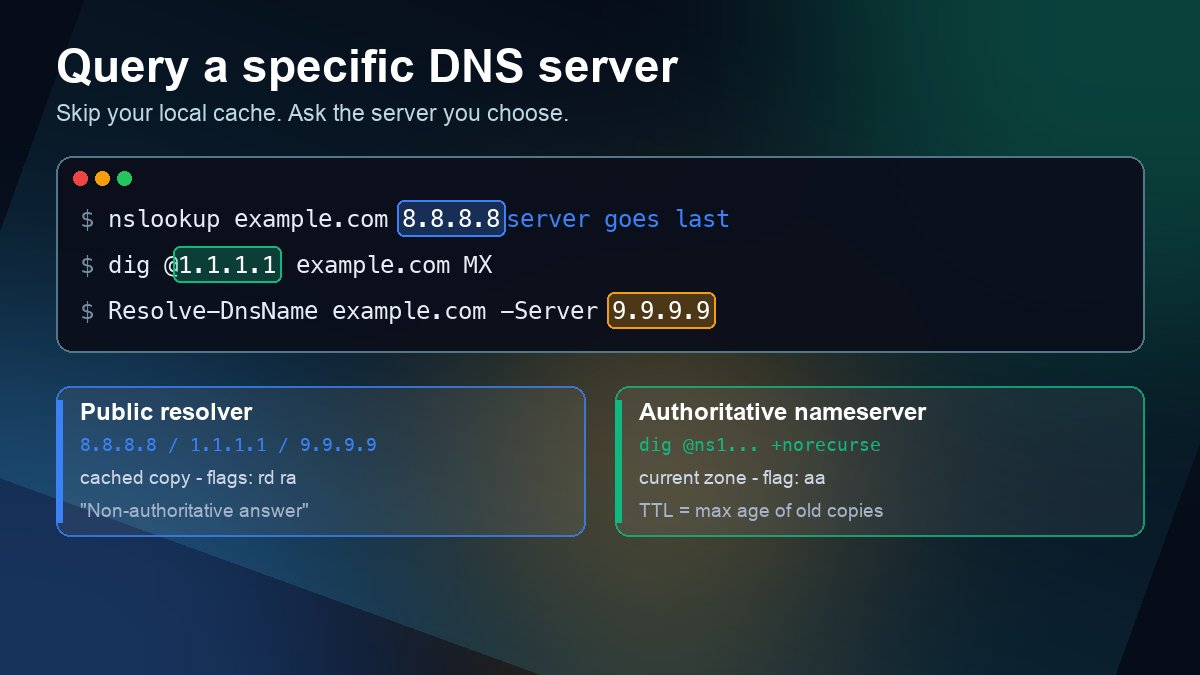
Short answer: put the server after the name. nslookup example.com 8.8.8.8 asks Google Public DNS instead of the resolver your computer normally uses, and nslookup -type=mx example.com 1.1.1.1 does the same for a specific record type. With dig the server comes first, after an @ sign: dig @1.1.1.1 example.com MX. In Windows PowerShell the equivalent is Resolve-DnsName -Name example.com -Type MX -Server 1.1.1.1. The rest of this guide covers which server to ask for which question, how to query a domain's own authoritative nameserver, and how to read what comes back.
Why query a specific DNS server at all?
By default nslookup and dig ask whatever resolver your operating system is configured with: usually your router, your ISP, a company DNS server or a VPN's resolver. That resolver caches each answer for as long as the record's TTL allows. So right after you change a record, your default resolver may still hand out the old value, and a plain lookup tells you about that cache rather than about your DNS zone.
Sending the query to a server you choose answers three different questions:
- Is my local resolver the problem? Compare your default resolver with a public one. If 8.8.8.8 returns the new value and your router does not, the change is live and you are looking at a stale cache.
- What does the source of truth say? Ask the domain's authoritative nameserver. Its answer is what every resolver will see once the old cached copies expire.
- What do people on other networks see? Public resolvers fill their caches at different moments, which is most of what people mean by DNS propagation.
nslookup: the server goes last
nslookup ships with Windows, macOS and most Linux distributions. In one-line (non-interactive) mode the pattern is nslookup [options] name [server]:
nslookup example.com 8.8.8.8
nslookup -type=mx example.com 1.1.1.1
nslookup -type=ns example.com 9.9.9.9
nslookup -type=txt example.com 8.8.4.4
This is the first command as we ran it on 22 October 2026:
Server:    8.8.8.8
Address:   8.8.8.8#53

Non-authoritative answer:
Name:      example.com
Address:   172.66.147.243
Name:      example.com
Address:   104.20.23.154
The Server line confirms who answered. If it shows your router's address instead of the one you typed, the server argument was not picked up, and the usual cause is putting the server before the name. Windows prints the resolver's hostname above its address and shows UnKnown when that resolver has no reverse DNS name. That is cosmetic; the lookup still worked.
Non-authoritative answer means the reply came from a recursive resolver (from its cache or from a lookup it made on your behalf), not from a nameserver that hosts the zone. For public resolvers that is normal, not an error.
Interactive mode: switch servers mid-session
Run nslookup on its own to get a > prompt. server 1.1.1.1 changes the server for every query that follows, and set type= changes the record type:
nslookup
> server 1.1.1.1
> set type=ns
> example.com
> set type=a
> www.example.com
> exit
Microsoft's reference also lists lserver. It makes the same switch but looks up the new server's name using your original default server, which helps when the server you switch to cannot resolve names for you, such as an authoritative-only nameserver.
nslookup options worth knowing
| Option | What it does |
|---|---|
-type=mx (or -query=mx) | Record type to ask for: a, aaaa, mx, ns, txt, cname, soa, ptr |
-port=5353 | Query a server listening on a non-standard port |
-timeout=10 | Seconds to wait for a reply before retrying |
-vc | Use TCP instead of UDP, useful when a firewall drops large UDP replies |
-debug | Print the full response, including each record's TTL |
dig: the server goes first, after @
dig is the tool most DNS engineers reach for, because it prints the whole DNS response, flags and TTLs included. It is preinstalled on macOS. On Debian and Ubuntu it comes in the dnsutils package (bind9-dnsutils on newer releases), and on Fedora and RHEL in bind-utils. The pattern is dig @server name type:
dig @8.8.8.8 example.com A
dig @1.1.1.1 example.com MX +short
dig @9.9.9.9 example.com TXT
dig @2606:4700:4700::1111 example.com AAAA
+short prints only the values. Leave it off when you need the detail. The header shows the status (NOERROR, NXDOMAIN, SERVFAIL) and the footer names the server that replied and how long it took:
;; ->>HEADER<<- opcode: QUERY, status: NOERROR
;; flags: qr rd ra ad; QUERY: 1, ANSWER: 2, AUTHORITY: 0, ADDITIONAL: 1
...
;; Query time: 17 msec
;; SERVER: 1.1.1.1#53(1.1.1.1)
The flags tell you what kind of server answered. ra (recursion available) marks a resolver, aa (authoritative answer) marks a server that hosts the zone, and ad means the resolver validated the answer with DNSSEC.
Ask the authoritative nameserver directly
This check settles most "did my change work?" questions, because it skips every cache. It takes two steps: find the domain's nameservers, then query one of them.
dig example.com NS +short
elliott.ns.cloudflare.com.
hera.ns.cloudflare.com.

dig @elliott.ns.cloudflare.com example.com A +norecurse
In our test the reply carried the aa flag and a TTL of 300 seconds on each A record. That TTL is the longest a resolver should keep serving the old value after a change. The nslookup version is nslookup -type=ns example.com followed by nslookup example.com elliott.ns.cloudflare.com, and the answer is no longer labelled non-authoritative.
If the nameserver replies REFUSED or hands you a referral instead of an answer, you asked a server that does not host that zone, so re-check the NS list. When you are moving to a new DNS host, query the new provider's nameservers directly before you switch, so you know the zone is complete. Our nameserver lookup shows which nameservers a domain delegates to right now, and this guide explains the registry side of that check.
Which server to pick
| Server | Address | Use it to |
|---|---|---|
| Google Public DNS | 8.8.8.8, 8.8.4.4 | Compare with a large public cache |
| Cloudflare | 1.1.1.1, 1.0.0.1 | Get a second, independent cache |
| Quad9 | 9.9.9.9 | Get a third opinion; it also blocks known malicious domains, so a block there is not proof of a DNS fault |
| The domain's own nameserver | From the NS lookup | See the current value with no cache involved |
| Your router or company DNS | Shown by a plain nslookup | See exactly what your own devices receive |
Windows PowerShell: Resolve-DnsName
On Windows, Resolve-DnsName returns objects you can filter and pipe, which suits scripts and repeated checks:
Resolve-DnsName -Name example.com -Type MX -Server 1.1.1.1
Resolve-DnsName -Name example.com -Type A -Server elliott.ns.cloudflare.com -DnsOnly
-Server takes one or more DNS servers. -DnsOnly stops Windows from also trying LLMNR or NetBIOS, -NoHostsFile ignores the local hosts file, and -CacheOnly shows only what the Windows DNS client cache already holds, a quick way to see whether your PC is still keeping an old answer.
When the query fails
- Timed out, or "no servers could be reached": many office, hotel and some mobile networks block outbound DNS on port 53 to anything except their own resolver. Try another network, or use our online DNS lookup, which queries from outside your network.
- REFUSED: the server will not answer recursive questions from you, or it is an authoritative server that does not host that zone.
- NXDOMAIN: that server says the name does not exist. If only one resolver says so, it may be holding a cached negative answer, which lasts as long as the zone's SOA negative-caching TTL (RFC 2308). Browser errors caused by this are covered in our NXDOMAIN fix guide.
- SERVFAIL: the resolver could not get a usable answer, often because of a DNSSEC validation failure or unreachable nameservers. Run the query again with
dig +cd(checking disabled); if an answer appears, DNSSEC is the likely cause. More fixes are in common DNS errors. - Different answers from different public resolvers: usually caching after a recent change, so wait for the old TTL to run out. Some domains also answer differently by location on purpose, which is how CDNs use DNS.
FAQ
Does the order of arguments matter in nslookup?
Yes. Options come first, then the name, then the server: nslookup -type=txt example.com 8.8.8.8. Swap them and nslookup does a reverse lookup of the IP address while trying to use the domain name as the DNS server, which usually ends in a timeout.
Can I give a server name instead of an IP address?
Yes. nslookup example.com dns.google and dig @one.one.one.one example.com both work. The tool first resolves the server's name through your default resolver, so an IP address is more reliable when your default resolver is the thing you suspect.
dig shows the new IP, so why does my browser still load the old site?
Your operating system and browser keep their own short caches. Flush the OS cache with ipconfig /flushdns on Windows or sudo dscacheutil -flushcache; sudo killall -HUP mDNSResponder on macOS, then restart the browser.
Sources: Microsoft Learn, "nslookup" command reference and its server and lserver subcommands; Microsoft Learn, "Resolve-DnsName" (DnsClient module); BIND 9 manual pages (dig); RFC 1034 and RFC 1035 (DNS concepts and message format); RFC 2308 (negative caching). Example output from live queries run 22 October 2026 on macOS with DiG 9.10.6 and the system nslookup. Results for example.com, the domain reserved for documentation, will change over time.