How to Check What Nameservers a Domain Is Using
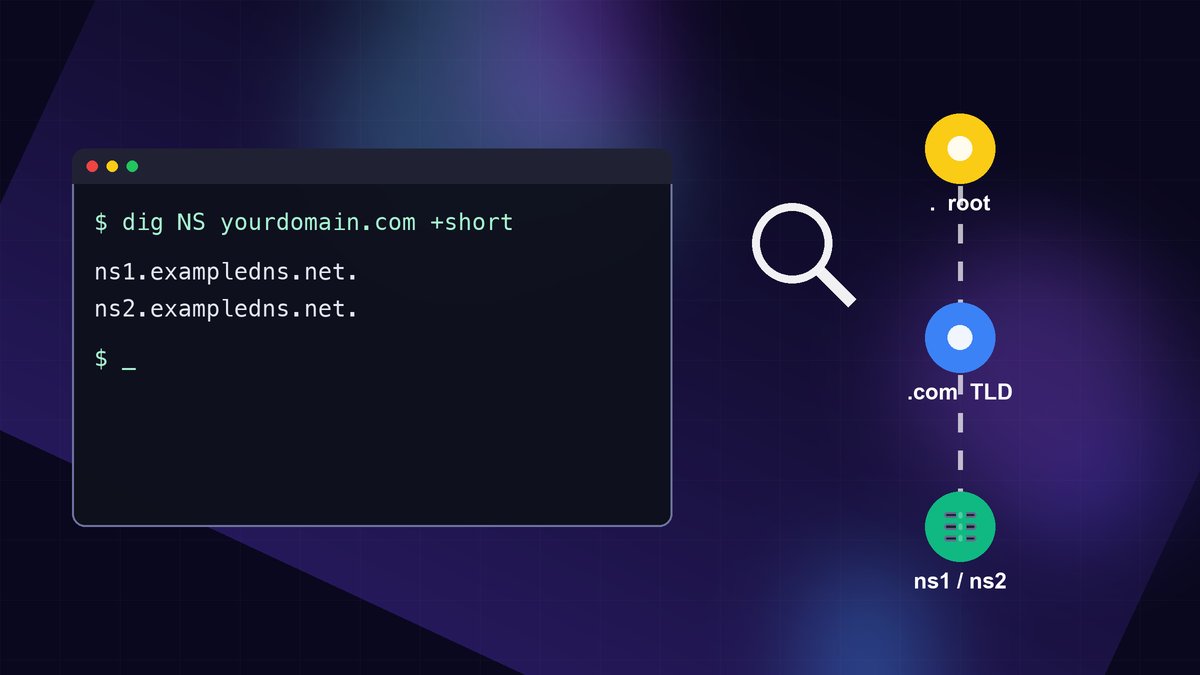
Short answer: the fastest way to see which nameservers a domain is using is to run dig NS yourdomain.com +short on macOS or Linux, nslookup -type=NS yourdomain.com on Windows, or paste the domain into our free Nameserver Lookup tool. If you need the answer straight from the registry (for example, right after you changed nameservers at your registrar), query the TLD servers directly or check the WHOIS/RDAP record. The four methods below cover every situation, and the section on conflicting results explains why two tools can show different nameservers for the same domain.
Two places nameservers are listed (and why it matters)
Nameservers for a domain are published in two places, and most confusion comes from mixing them up:
- The delegation at the registry (parent zone). When you set nameservers at your registrar, the registrar sends them to the registry for the TLD, such as Verisign for .com. The registry's servers then tell the rest of the internet where your domain's DNS lives. This is the list that actually controls where traffic goes.
- The NS records inside your own zone (child zone). Your DNS provider also publishes NS records in the zone it hosts. Normally they match the delegation exactly, but they do not have to. RFC 1034 expects the two sets to agree, and when they drift apart you get hard-to-debug problems.
A normal lookup through a public resolver usually shows you the child zone's NS records (or a cached copy). A WHOIS check or a direct query to the TLD servers shows you the delegation. When you troubleshoot, check both.
Method 1: Use an online nameserver checker
If you only need a quick answer, use a web tool. Open the Nameserver Lookup page, type the bare domain (for example yourdomain.com, without https:// or www) and run the check. You will get the list of NS hostnames the domain currently resolves to.
This is the right method for support staff and site owners who are not comfortable with a terminal. Two tips:
- Always check the root domain. Subdomains such as
shop.yourdomain.comusually have no NS records of their own unless they are delegated separately. - If the result looks wrong right after a change, it may be cached. Compare it with Method 4, which skips caches.
Method 2: Check nameservers from the command line
macOS and Linux: dig
dig is installed on macOS by default and is part of the dnsutils or bind-utils package on most Linux distributions.
dig NS yourdomain.com +shortThe output is one nameserver per line, each ending in a dot, for example:
ns1.exampledns.net.
ns2.exampledns.net.
Drop +short to see the full answer, including the TTL (how many seconds resolvers may cache the result). To ask a specific public resolver instead of your local one, add it with @:
dig NS yourdomain.com @1.1.1.1 +short
dig NS yourdomain.com @8.8.8.8 +short
Windows: nslookup or PowerShell
In Command Prompt:
nslookup -type=NS yourdomain.comLook for lines that read nameserver = .... The "Non-authoritative answer" label only means the reply came from a resolver's cache rather than from the domain's own nameservers. That is normal.
In PowerShell, the built-in Resolve-DnsName cmdlet gives cleaner output:
Resolve-DnsName -Name yourdomain.com -Type NSThe NameHost column lists the nameservers.
Method 3: Look up the WHOIS or RDAP record
The registration record shows the nameservers your registrar has on file with the registry, which is the delegation described above. Use our WHOIS Lookup, ICANN's official lookup service at lookup.icann.org (RDAP), or the terminal:
whois yourdomain.com | grep -i "name server"You should see lines such as Name Server: NS1.EXAMPLEDNS.NET. Uppercase is normal, because DNS names are not case-sensitive. WHOIS is especially useful when the domain does not resolve at all, because it still shows which nameservers the registry has been told to use. Some country-code TLDs publish limited WHOIS data. If the nameserver lines are missing, use Method 4.
Method 4: Ask the TLD servers directly (no caching)
This is the method professionals use right after a nameserver change, because it reads the delegation straight from the registry instead of from any resolver cache. For .com and .net domains, Verisign's servers are named a.gtld-servers.net through m.gtld-servers.net:
dig NS yourdomain.com @a.gtld-servers.net +norecurseThe nameservers appear in the AUTHORITY SECTION of the output (not the ANSWER section), because the TLD server is referring you onward rather than answering for your zone. For any other TLD, first find its servers, then query one of them:
dig NS org +short
dig NS yourdomain.org @<one of the servers listed> +norecurse
Or let dig walk the entire chain from the root servers down, which shows every referral on the way:
dig +trace NS yourdomain.comHow to read the result: which DNS provider is it?
Nameserver hostnames usually reveal who hosts the DNS zone, which tells you where to edit records:
- Cloudflare: two names in the form
name.ns.cloudflare.com - Amazon Route 53: four names like
ns-123.awsdns-45.comspread across .com, .net, .org and .co.uk - Google Cloud DNS: names like
ns-cloud-a1.googledomains.com - GoDaddy: names like
ns01.domaincontrol.com - Namecheap (default DNS):
dns1.registrar-servers.comanddns2.registrar-servers.com
If you see your web host's own hostnames, such as ns1.yourhost.com, then DNS records are managed in that host's control panel. Edits made at your registrar will have no effect until the nameservers point back there. Our step-by-step guide to changing nameservers covers the switch itself.
Why different tools show different nameservers
If two checks disagree, it is almost always one of these four causes:
- A recent change is still cached. The .com registry publishes NS delegations with a TTL of 172,800 seconds (48 hours), so some resolvers can keep showing the old nameservers for up to two days. Method 4 shows the new value immediately. See DNS propagation explained for what is happening in between.
- The registrar and the zone disagree. WHOIS shows one set and
dig NSshows another. Fix the registrar setting if it is wrong, or update the NS records inside the zone so they match the delegation. - One listed nameserver is not authoritative (a "lame delegation"). Test each server on its own with
dig yourdomain.com SOA @ns1.exampledns.net. A server that returns REFUSED or SERVFAIL, or does not answer, has not been set up for your zone. - DNSSEC is broken after a move. If you changed DNS providers but left the old DS record at the registrar, validating resolvers return SERVFAIL even though the nameservers look right. Remove or update the DS record. Our DNSSEC explainer shows how the chain of trust works.
A 60-second troubleshooting checklist
- Run
whois yourdomain.com | grep -i "name server"and note the delegated nameservers. - Run
dig NS yourdomain.com @a.gtld-servers.net +norecurse(or the matching TLD server) and confirm the registry list matches. - Run
dig NS yourdomain.com @1.1.1.1 +shortand compare it with what resolvers see. - Query each nameserver directly for the SOA record to confirm that it answers authoritatively.
- Then check the records you actually care about, such as A, MX or TXT, with the DNS Lookup tool. For common error messages, see common DNS errors and how to fix them.
FAQ
Can I find a domain's nameservers without access to the account?
Yes. Nameservers are public by design. Anyone can see them with any of the methods above, and no login is needed. What you cannot see publicly is which registrar account controls the domain.
How many nameservers should a domain have?
At least two, and ideally on separate networks, so the domain keeps resolving if one server fails. Most managed DNS providers assign two to four.
Do subdomains have their own nameservers?
Only if they have been delegated on purpose with NS records in the parent zone. Otherwise a subdomain uses the root domain's nameservers, and checking NS for it returns nothing useful. New to the basics? Start with what nameservers are and how they work.
Sources: RFC 1034 (Domain Names: Concepts and Facilities), ICANN Registration Data Lookup (lookup.icann.org), Microsoft Learn documentation for Resolve-DnsName, and the providers' own published nameserver naming. Command output above uses placeholder names. Run the commands against your own domain to see real values.