DNS Server Not Responding: What It Means and How to Fix It
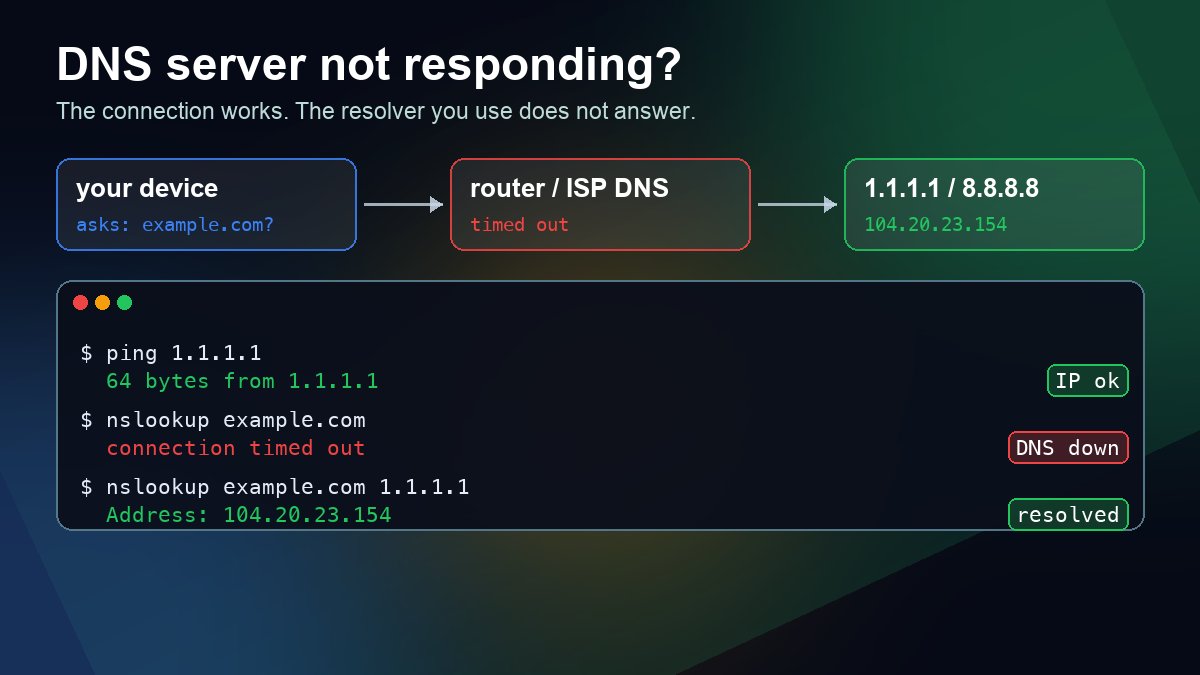
Short answer: "DNS server not responding" means your device sent a name lookup to the DNS server it is configured to use and got no answer back in time. Your internet connection itself may be fine; it is the step that turns a name like example.com into an IP address that fails. You can confirm it in ten seconds: if ping 1.1.1.1 gets replies but ping example.com fails, DNS is the problem. Then run nslookup example.com 1.1.1.1. If that answers while a plain nslookup example.com times out, the resolver you normally use (usually your router or your ISP) is at fault, and switching to a public resolver fixes it in about a minute. The rest of this guide is the full order of checks, with exact commands for Windows, macOS and Linux.
What the error actually means
Windows shows it in Network Diagnostics as "Your computer appears to be correctly configured, but the device or resource (DNS server) is not responding." Chrome and Edge usually report the same failure with a DNS_PROBE error code, and Safari says it "can't find the server." In every case the client asked a resolver to translate a name and nothing usable came back.
That is different from the errors in our common DNS errors guide. NXDOMAIN means a server did answer and said the name does not exist. SERVFAIL means a server answered and said it could not resolve the name. "Not responding" means there was no answer at all, so the problem almost always sits between your device and its resolver, not in the website's own DNS records. If one site shows DNS_PROBE_FINISHED_NXDOMAIN while everything else loads, that is a different fault with a different fix.
Step 1: Confirm it really is DNS
Open a terminal (Command Prompt or PowerShell on Windows, Terminal on macOS or Linux) and run two pings: one to an IP address, one to a name.
ping 1.1.1.1
ping example.com
| Result | What it tells you | Next step |
|---|---|---|
| Both fail | No network path at all (Wi-Fi, cable, router or ISP outage) | Fix the connection first; DNS settings will not help |
| IP replies, name fails | The connection works, name lookups do not | Continue with Step 2 |
| Both work | DNS is working right now | The problem is one site or an intermittent resolver; test that exact name with nslookup |
Some networks block ping. If ping 1.1.1.1 fails but other connections clearly work (a messaging app, a video call), treat it as "IP replies" and carry on.
Step 2: Find out which DNS server you are actually using
You cannot fix a resolver until you know which one your device is asking.
- Windows:
ipconfig /alland read the DNS Servers line for your active adapter, or in PowerShellGet-DnsClientServerAddress -AddressFamily IPv4. - macOS:
scutil --dns | grep nameserver - Linux with systemd-resolved:
resolvectl status; on other systemscat /etc/resolv.conf.
How to read the address: 192.168.1.1, 192.168.0.1 or 10.0.0.1 is normally your router, which forwards every lookup to your ISP. 127.0.0.53 is the local systemd-resolved stub on Linux, so check resolvectl status for the real upstream. An address you do not recognise, such as a leftover VPN resolver or something you once typed in manually, is a strong clue in itself.
Step 3: Ask a different DNS server directly
This is the test that splits the problem in half. Run the same lookup three times: once against your normal resolver and twice against public ones.
nslookup example.com
nslookup example.com 1.1.1.1
nslookup example.com 8.8.8.8
A resolver that does not answer looks like this on macOS and Linux (we pointed the lookup at an unused documentation address to reproduce it):
$ dig +time=2 +tries=1 example.com @192.0.2.1
;; connection timed out; no servers could be reached
On Windows the same failure prints DNS request timed out instead. A healthy answer from Cloudflare's resolver, run on 24 October 2026, looked like this:
$ nslookup example.com 1.1.1.1
Server:    1.1.1.1
Address:   1.1.1.1#53

Non-authoritative answer:
Name:    example.com
Address: 104.20.23.154
- Your default times out, the public servers answer: your configured resolver is the problem. Go to Step 4, then Step 5 if it comes back.
- All three time out: something on your device or network is blocking DNS traffic (port 53) itself. Skip to Step 6.
In PowerShell the equivalent is Resolve-DnsName -Name example.com -Server 1.1.1.1 -DnsOnly. For more ways to point a lookup at a chosen server, see how to query a specific DNS server with nslookup and dig.
Step 4: Restart the router and flush the local cache
Most home routers run a small DNS forwarder. After long uptime, a firmware glitch or an ISP reconnect it can stop answering while the rest of the router keeps working, which is exactly the "IP works, names don't" pattern. Unplug the router for 30 seconds, plug it back in and wait until it has fully reconnected.
Then clear the cache on your device so it stops reusing failures it stored while DNS was broken:
- Windows:
ipconfig /flushdns(orClear-DnsClientCachein PowerShell) - macOS:
sudo dscacheutil -flushcache; sudo killall -HUP mDNSResponder - Linux (systemd-resolved):
resolvectl flush-caches
Be realistic about what flushing does: it cannot make a dead resolver answer. It only removes stale entries, which is why it helps after the resolver is back but not before.
Step 5: Switch to a public DNS resolver
If your ISP's resolver keeps failing, stop depending on it. These free public resolvers are run by large operators and answer from many locations:
| Provider | IPv4 | IPv6 |
|---|---|---|
| Cloudflare | 1.1.1.1, 1.0.0.1 | 2606:4700:4700::1111, 2606:4700:4700::1001 |
| Google Public DNS | 8.8.8.8, 8.8.4.4 | 2001:4860:4860::8888, 2001:4860:4860::8844 |
| Quad9 | 9.9.9.9, 149.112.112.112 | listed on Quad9's own setup page |
Using one address from two different providers (for example 1.1.1.1 and 8.8.8.8) gives you a fallback if one provider has an incident. Our free DNS providers comparison covers the privacy and filtering differences.
Windows
In PowerShell as administrator, find your adapter name, then set the servers:
Get-NetAdapter
Set-DnsClientServerAddress -InterfaceAlias "Wi-Fi" -ServerAddresses ("1.1.1.1","8.8.8.8")
To go back to the servers your router hands out, run Set-DnsClientServerAddress -InterfaceAlias "Wi-Fi" -ResetServerAddresses. The same change is available in Settings under Network & internet, in the DNS server assignment section of your Wi-Fi or Ethernet connection.
macOS
Open System Settings, click Network, choose your connection, click Details and then DNS. Or from Terminal:
networksetup -setdnsservers Wi-Fi 1.1.1.1 8.8.8.8
networksetup -setdnsservers Wi-Fi empty
The second line undoes the change and returns to the router's servers.
On the router
Setting the DNS servers in the router's WAN or DHCP settings fixes every device on the network at once, including phones, TVs and consoles that have no easy DNS setting of their own.
One caution for work laptops: company networks often resolve internal names (intranet sites, Active Directory, VPN-only hosts) only through the company's own DNS servers. Overriding them with a public resolver can break those names. On a managed device, report the problem to IT instead of changing DNS yourself.
Step 6: When no DNS server answers at all
If even 1.1.1.1 and 8.8.8.8 time out while ping 1.1.1.1 works, DNS packets are being dropped on the way out. Check these in order:
- VPN client. Many VPNs force their own resolver and can leave a dead DNS setting behind after a crash or an unclean disconnect. Disconnect, quit the client completely and test again.
- Security software. Antivirus suites with "web protection" or DNS filtering sometimes intercept lookups. Pause that feature briefly to test, then turn it back on.
- Captive portal. Hotel, airport and office guest Wi-Fi often blocks DNS until you accept the login page. Open any plain http address in a browser to trigger the sign-in screen.
- A broken IPv6 resolver. If the router advertises an IPv6 DNS server that does not work, some lookups stall. Check the IPv6 entries from Step 2; our IPv6 DNS configuration guide explains how they are assigned.
- Windows network stack. In an administrator Command Prompt run
ipconfig /release,ipconfig /renew, thennetsh winsock resetandnetsh int ip reset, and restart the PC.
The opposite pattern also exists: nslookup works but one browser fails. That usually means the browser's own secure DNS setting points at a provider your network blocks. Our DNS over HTTPS explainer shows where that setting lives.
If only your own domain fails
If you run a website and visitors report DNS errors for your domain while every other site works for them, the issue is not their resolver. It is your domain's authoritative nameservers, and resolvers will usually return SERVFAIL rather than a timeout. Check which nameservers the domain is delegated to and whether each one answers:
dig NS yourdomain.com +short
dig @ns1.yourdnshost.com yourdomain.com A +norecurse
A nameserver that times out here, a delegation to servers that no longer host the zone, or an expired domain are the usual causes. You can run the same checks in the browser with our nameserver lookup and DNS lookup tools, and how to check what nameservers a domain is using walks through reading the results.
Quick checklist
- Ping an IP and a name to confirm the fault is DNS.
- Note which DNS server your device uses.
- Run nslookup against your default resolver, 1.1.1.1 and 8.8.8.8.
- Restart the router and flush the local DNS cache.
- If the default resolver keeps failing, switch to two public resolvers from different providers.
- If nothing answers, check the VPN, security software, captive portal, IPv6 DNS and the Windows network stack.
FAQ
Is it safe to use 1.1.1.1 or 8.8.8.8 instead of my ISP's DNS?
For most home users, yes. Both are free, widely used resolvers with published privacy policies. The main exception is a work or school network that needs its own DNS servers for internal names.
Why does only one device get the error?
Because that device has its own DNS setting: a manual entry, a VPN, security software or a stale cache. Compare its Step 2 output with a device that works.
Will flushing DNS fix "DNS server not responding"?
Only if the resolver is already answering again and your device is holding on to an old failure. If the resolver itself is down, change the resolver instead.